
Two Separate Logins — Clear This Up First
TiviMate involves two completely different sets of credentials that serve two completely different purposes. Mixing them up is the most common source of login errors across all TiviMate support questions. Before installing Companion, make sure you understand which is which.
IPTV provider credentials
An M3U URL or Xtream Codes (server, username, password) supplied by your IPTV subscription provider.
Goes into TiviMate app → Settings → Playlists → Add Playlist. Connects TiviMate to your channel list. Has nothing to do with your TiviMate account.
TiviMate account credentials
An email and password you create yourself inside the Companion app.
Goes into Companion app AND TiviMate → Settings → Account. Activates Premium features. Has nothing to do with your IPTV provider.
What Companion Actually Does (and Does Not Do)
Companion is tiny — about 3MB. It does not play IPTV streams and it cannot show you TV channels. Here is exactly what it does.
What It Does
Purchase TiviMate Premium
The main reason most users install it. Subscriptions are processed through Google Play — credit card, Google Pay or carrier billing.
Manage device slots
View every device registered to your account, add new ones and remove old or lost devices. One Premium covers up to 5 devices.
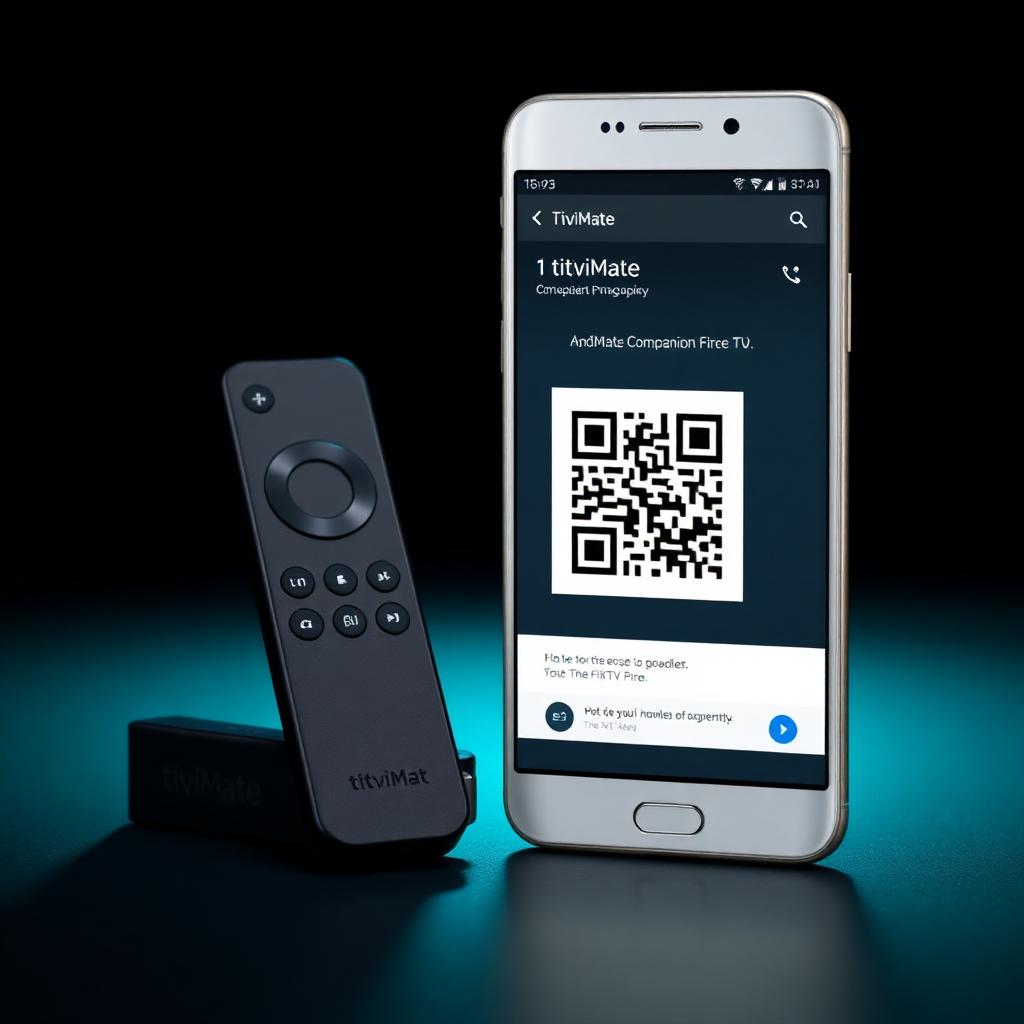
QR code playlist sharing
Generate a QR code for any IPTV playlist profile and scan it on a new device to import the playlist instantly — no typing.
Phone as remote control
Pair Companion with TiviMate on Firestick and use your phone to navigate the channel grid, EPG and settings.
View subscription status
Current plan, renewal date and Premium status visible at a glance. Useful when troubleshooting whether Premium is actually active.
What It Does NOT Do
- Play IPTV channels or streams — Companion has no video playback at all.
- Act as an IPTV player — use the regular TiviMate app for that.
- Store IPTV provider credentials in a vault — playlists are tied to your TiviMate account, not stored as a password manager.
- Work without a Premium subscription — most features (device management, QR sharing, remote control) require Premium.
How to Download and Set Up Companion
Setup takes under 10 minutes from install to activated Premium on Firestick.
-
Download Companion from Google Play
Search
TiviMate Companionin the Google Play Store on any Android phone or tablet and install.⚠ Android onlyCompanion is not available on iPhone. If you do not have an Android phone, install BlueStacks on Windows or Mac, sign in to Google Play inside the emulator and install Companion there. -
Create your TiviMate account
Open Companion, go to Account → Create Account and enter an email and password.
⚠ ReminderThis is your TiviMate account — NOT your IPTV provider login. Use a fresh email/password you will remember.
- Purchase a Premium plan In Companion go to Account and select a plan. Annual includes a 7-day trial. Lifetime is around 33.99 USD. Payment is processed by Google Play. For full pricing details see our TiviMate Premium guide.
-
Activate Premium on Firestick
Open TiviMate on your Firestick, go to Settings → Account and sign in with the same email/password you created in Companion.
✓ DonePremium features (recording, multiple playlists, custom EPG sources) activate instantly on this device.
The QR Code Feature — Add Playlists Instantly Across Devices
This is the most underused feature in Companion. If you have TiviMate on multiple devices — two Firesticks, a Fire TV Cube, a tablet — you normally have to re-enter your IPTV provider credentials manually on each one. The QR code feature eliminates this entirely.
- Open Companion and go to Playlists You will see every playlist tied to your TiviMate account.
- Select playlist → Share → QR Code Companion generates a QR code on screen.
-
Scan it on the new device
On the new device open TiviMate, go to Settings → Playlists → Add Playlist → Scan QR Code. Point the device's camera (or hold the phone QR up to a Firestick during initial setup) and the playlist imports instantly.
✓ No typing neededServer URL, username and password all transfer in one scan. Save this for every new device you add.
Use Your Phone as a TiviMate Remote
Companion can control TiviMate navigation on your Firestick from your phone. Useful if your Firestick remote has died, you have misplaced it, or you simply prefer controlling TiviMate from your phone.
- On Firestick — generate a pairing code In TiviMate go to Settings → Remote Control → Companion App. A pairing code appears.
- In Companion — enter the code On your phone open Companion, go to Remote Control, enter the pairing code and tap Pair.
-
Your phone now controls TiviMate
Use the touchscreen to navigate channels, EPG and settings on the Firestick.
Same Wi-Fi requiredBoth the phone and Firestick must be on the same Wi-Fi network. The pairing does not work across different networks.
Manage Your Device Slots
One Premium account covers 5 devices. Hit the limit and TiviMate refuses to activate on the next one until you free a slot. All slot management happens in Companion.
See registered devices
List every device currently using your Premium.
Free a slot
Remove an old or lost device to free its slot for a new install.
Switch to a new Firestick
Install TiviMate on the new Firestick, log in with your account, then remove the old Firestick from Companion to clean up the slot.
Common Companion Problems and Fixes
Device limit reached
You are at 5 devices. Open Companion → Account → Devices, remove an old or unused device, then retry login on the new one.
Premium not showing on Firestick
Log out of TiviMate (Settings → Account → Log out) and log back in. The Premium status refreshes on login.
Forgot password
On the Companion login screen tap Forgot Password. A reset email is sent to the address you registered.
Login keeps failing
You are almost certainly using your IPTV provider credentials instead of your TiviMate account email. Find the original Companion welcome email to confirm which email you registered with.
iPhone only — what now?
Install BlueStacks on Windows or Mac, sign in to Google Play inside the emulator and install Companion there. You only need to do this once to buy Premium — after that you can manage devices from any Android device or borrow one when needed.
Quick Reference
| Task | Path |
|---|---|
| Download Companion | Google Play Store → TiviMate Companion |
| Create TiviMate account | Companion → Account → Create Account |
| Buy Premium | Companion → Account → select plan → pay via Google Play |
| Activate Premium on Firestick | TiviMate → Settings → Account → log in |
| View registered devices | Companion → Account → Devices |
| Remove a device | Companion → Account → Devices → select → Remove |
| Generate QR code for playlist | Companion → Playlists → select → Share → QR Code |
| Pair phone as remote | TiviMate → Settings → Remote Control → Companion App → enter code in Companion |
| Forgot password | Companion login screen → Forgot Password |
Get the most out of TiviMate
For Premium pricing and what it actually includes see our TiviMate Premium guide. For a complete TiviMate setup from scratch see our TiviMate Setup guide. For the best IPTV services to pair with TiviMate see our best IPTV services guide.
Browse top IPTV services